Canva vs Word Resumes: Which Is Better for ATS?
ResumizeAI
Struggling to choose between Canva vs Word resume templates? You're not alone. Many job seekers pick a pretty layout over practical performance — then get ghosted. This guide breaks down the trade-offs, shows real examples, and gives step-by-step actions to build an ATS-friendly, recruiter-ready resume. Learn when to use Canva, when Word wins, common mistakes to avoid, and how to combine both for maximum impact.
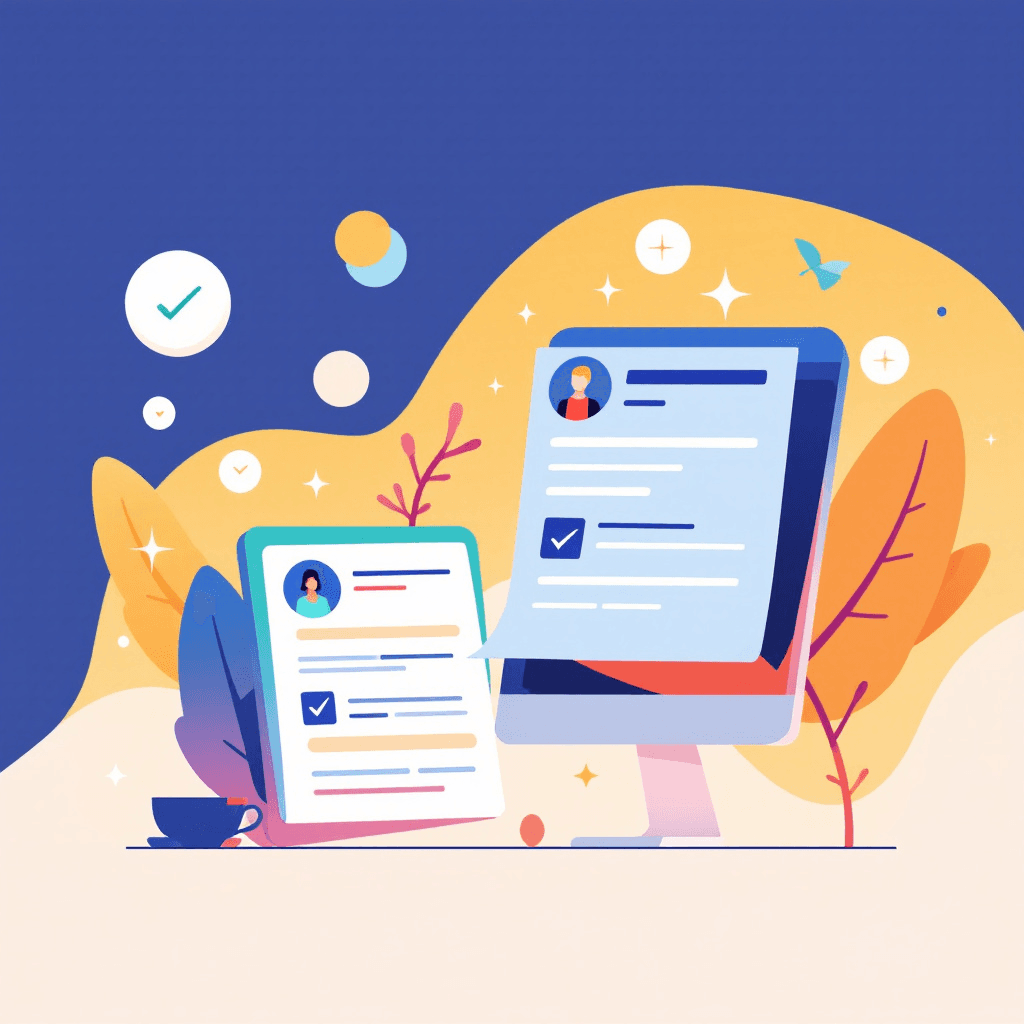
Microsoft Word is significantly better than Canva for ATS resumes. Canva exports heavily formatted PDFs or image-based files that many Applicant Tracking Systems cannot parse, leading to blank profiles. A simple Word document (DOCX) provides the best chance that your text, keywords, and dates are accurately extracted. Imagine spending hours designing a stunning resume in Canva — the colors pop, the icons are perfect, and it looks like a magazine — but you never hear back from employers.
Or picture a plain Word document that parses cleanly into every ATS system but reads forgettable to a recruiter. Resume performance sits at the crossroads of design and deliverability, and the Canva vs Word resume templates debate is more than an aesthetic argument — it's a hiring results issue. In this guide you'll learn the strengths and limits of both platforms, how Applicant Tracking Systems (ATS) really read resumes, and step-by-step decisions to make based on your job target.
By the end you’ll know when to prioritize design, when to prioritize parsing, and how to use tools like Resumize.ai to transform template choices into interviews. This is essential if you want to stop guessing and start scheduling interviews.
The parsing failures above are not rare. Three of them cover most rejections.
Tick anything that is true of the resume you are sending out right now.
Ticked nothing? Good. A full check still catches the quieter failures, like date formats read as employment gaps.
Free · No signup · PDF up to 3.5 MB
Why the Canva vs Word Resume Templates debate matters (quick reality check)
Hiring data shows that recruiters spend an average of 6–8 seconds on an initial resume scan, while ATS systems screen thousands of applications before a human sees them. That means your resume must both parse correctly and capture attention quickly. The core trade-off in the Canva vs Word resume templates conversation: Canva excels at modern visuals and branding; Word excels at compatibility and ATS friendliness.
Practical examples:
- A marketing manager candidate used a Canva template with columns and fancy icons; ATS dropped the first page because it couldn't read the left column, removing key keywords like "SEO" and "PPC." Result: fewer interviews despite strong design.
- A sales candidate used a Word template with clear headings and bullet points, got past ATS and secured multiple recruiter calls in two weeks.
Actionable checklist (decide before you start):
- 1Are you applying via a company portal? Assume ATS parsing.
- 2Is the role creative and likely to be reviewed by a human (design, branding)? Design risk is lower.
- 3Are you sending the resume directly to a recruiter or networking contact? You can use a visual resume but keep a plain-text or Word copy ready.
This early decision saves time and prevents common mistakes that cost interviews.
How ATS reads resumes — and why Word often wins
Understanding Applicant Tracking Systems clarifies why Word templates often outperform Canva exports. ATS parse plain text and rely on consistent structure: standard headings (Experience, Education), simple bullets, chronological dates, and recognizable fonts. Complex layouts — multiple columns, embedded text boxes, custom fonts — can confuse parsing logic and cause keyword loss.
Key parsing behaviors:
- Left-to-right, top-to-bottom reading: content in sidebars or columns may be skipped or reordered.
- Plain-text extraction: images, icons, and decorative lines don’t translate and can hide key info.
- Heading recognition: ATS look for common heading keywords; custom wording can break detection.
Practical steps to make Word templates ATS-friendly:
- 1Use standard fonts like Arial, Calibri, or Times New Roman.
- 2Keep a single-column layout for important sections.
- 3Use standard headings: "Professional Experience," "Education," "Skills."
- 4Avoid text boxes, headers/footers for critical content.
- 5Submit .docx when possible — some ATS handle PDF inconsistently.
Example scenario: A product manager used a Word template but kept job titles and dates inconsistent ("June 2018 — Present" vs "2018–Now"). Normalize date formats across all entries to improve ATS date recognition.
Bottom line: When volume and parsing matter, Word-based templates are safer. But that doesn't mean they must be boring — you can create a clean, modern Word layout that reads well and looks professional.
See what a parser actually keeps
Upload the resume you are sending out. You get a score on the four things recruiters filter by, and the specific lines that break. No account.
Upload it and see what a recruiter sees
- Scores the four things recruiters filter on
- Names the exact lines that break
- No account, about 15 seconds
When Canva is the strategic choice — design, branding, and career-switch stories
Canva shines when your goal is to brand yourself, stand out in creative industries, or present a portfolio where visual layout adds context. If a hiring manager will review resumes manually — for example, in design, marketing communications, or startup roles — Canva templates can tell a story beyond plain text.
Use Canva when:
- You're applying for design, branding, content, or creative roles.
- You're sending a resume in a networking email or to a hiring manager directly.
- You want to present a one-page visual summary for LinkedIn or a portfolio site.
Real-world examples:
- A UX designer used Canva to create a two-page resume with a small portfolio snapshot and clear section icons. She sent the Canva PDF to hiring managers and a Word copy to the company portal. Result: 5 interviews in 6 weeks.
- A career changer moving from teaching to learning & development used Canva to highlight certifications and a skills infographic that a recruiter shared internally — leading to a phone screen.
Practical Canva actions:
- 1Build your resume in Canva but avoid embedding critical text within images.
- 2Create a Word or clean PDF backup for ATS uploads.
- 3Export high-quality PDF for emailing to humans, and test with a text-extraction tool to ensure keywords remain readable.
What-if exercise: What if the company asks for a PDF only? Use Canva but follow the testing steps to avoid parsing loss.
Hybrid approach: Combine Canva and Word for the best results
You don’t have to choose one platform forever — combine strengths. Many job seekers use Canva for the visually rich version they send directly to contacts and Word for ATS submissions. This hybrid approach lets you present a polished brand to humans while keeping parsing accuracy for portals.
Step-by-step hybrid process:
- 1Create a master resume with all content in Word. This becomes the ATS-friendly source.
- 2Copy content into Canva for visual enhancement, but keep critical sections in text (not images).
- 3Export both: .docx for job portals and PDF from Canva for outreach emails.
- 4Test both versions: run the Word doc through an ATS simulator (or Resumize.ai) and use an OCR/text-extraction tool on the Canva PDF.
Example workflow:
- Morning: update Word source with new achievements and keywords.
- Afternoon: refresh Canva visual resume for a specific role, adjusting color accents and summary.
- Always save a plain-text version for LinkedIn copy-paste and easy ATS fallback.
This hybrid method reduces risk, maintains brand consistency, and increases your odds in both automated and human reviews.
Design tips that keep resumes ATS-friendly (for both Canva and Word)
Design matters, but not at the expense of readability. Use these proven design rules that work across both Canva and Word to ensure your resume looks great and parses correctly.
Essential design rules:
- Stick to one column for main content. If you use a sidebar, don’t place critical keywords there.
- Use bullet points for achievements, starting with action verbs and measurable outcomes ("Reduced churn 12% in 6 months").
- Keep fonts standard: if using a custom font in Canva, make a Word fallback with a common font.
- Use simple symbols sparingly (hyphens or bullets). Avoid icons for contact details in the ATS version.
- Keep headings exact: "Experience," "Education," "Skills."
Quick before/after example:
- Before: Two-column Canva resume with icons for each skill. ATS parsed no skills.
- After: One-column resume with a "Skills" list and the same icons removed for the ATS upload — recruiter liked the visual PDF, ATS now read keywords.
Actionable checklist to implement now:
- 1Run your resume through a plain-text preview (save as .txt) and check order and content.
- 2Convert your resume to PDF and copy-paste into a text editor — ensure nothing essential disappears.
- 3Keep an "ATS copy" and a "Creative copy" and update both simultaneously when you edit.
Following these rules preserves design impact without sacrificing ATS compatibility.
Testing, tools, and troubleshooting: How to know which template wins
Testing beats guessing. Use tools and a simple troubleshooting workflow to validate that your resume works in the real world. You can test parsing, recruiter readability, and visual impact quickly.
Tools to use:
- ATS simulators: free or paid parsers (e.g., Jobscan, Resumize.ai) to see how an ATS extracts your content.
- Plain-text tests: save as .txt and review ordering.
- PDF text extraction: copy-paste from PDF into a text editor to see what remains.
- Peer review: ask a recruiter or friend to glance for 6–10 seconds and note first impressions.
Step-by-step test routine:
- 1Upload your Word resume to an ATS checker. Note missing keywords and heading issues.
- 2Export your Canva resume as PDF and run the same checker. Compare differences.
- 3Fix issues in the source (Word) document and mirror safe visual changes in Canva.
- 4Iterate until both versions contain the same core content and keywords.
Case study: A data analyst applied to 50 roles with only a Canva PDF and got 1 interview. After following this test routine and creating an ATS-friendly Word copy, she applied to 30 more roles and got 7 interviews. The difference was in parsing and keyword retention.
When to get help: If parse scores are low despite cleanup, use Resumize.ai to optimize keyword placement and formatting for ATS while preserving your narrative for human readers.
Common mistakes and quick fixes when using Canva or Word
Everyone makes mistakes when rushing a resume. These are the most common errors in the Canva vs Word resume templates debate and quick fixes you can apply now.
Common mistakes and fixes:
- Mistake: Using columns for dates and job titles in Canva. Fix: Move dates to the right-aligned line under each position in the Word ATS version.
- Mistake: Embedding critical info in images (certificate screenshots). Fix: Add the certificate text (title, issuer, date) as text in Word.
- Mistake: Fancy icons replacing section headers. Fix: Keep clear text headers in both versions; use icons only in visual PDFs sent to humans.
- Mistake: Submitting only PDF to an ATS that prefers DOCX. Fix: Check job posting instructions and provide the requested format.
Instant action steps:
- 1Open your resume in Word and save as .txt. Correct any missing/garbled lines.
- 2Standardize dates and job title formatting across all entries.
- 3Create a short "core content" master document that holds your accomplishment bullets and keyword list — update templates from this master.
These quick fixes often raise ATS pass rates and recruiter responses dramatically because they remove parsing barriers and present clear, measurable accomplishments.
Key Takeaways
- 1Decide upfront whether ATS parsing or visual branding is your priority based on the role and application method.
- 2Use Word (.docx) for ATS submissions: single-column layouts, standard headings, and common fonts improve parsing.
- 3Use Canva for creative, direct outreach: keep critical text as selectable text and export a Word/ATS copy too.
- 4Adopt a hybrid workflow: maintain a Word master for keywords and a Canva visual resume for networking or hiring managers.
- 5Test both versions with ATS simulators, plain-text extraction, and peer 6-second impressions before applying.
- 6Avoid embedding essential content in images, avoid columns for key data, and standardize date/job-title formatting.
- 7When in doubt, use tools like Resumize.ai to optimize content and format for ATS while preserving your narrative for humans.
Conclusion
Choosing between Canva vs Word resume templates is not about picking the prettier option — it's about strategic matching to the application context. Word templates generally win for ATS reliability, while Canva shines when you need strong visual branding for human review. The smartest job seekers use a hybrid approach: a Word master that ensures keyword and parsing accuracy, and a Canva visual resume for direct outreach.
If you want to stop guessing and start getting interviews, use Resumize.ai to test and optimize both formats quickly — it helps you align keywords, fix parsing issues, and polish the version a recruiter will actually read. Visit http://resumize.ai/ to transform your templates into interviews today.
Frequently Asked Questions
Related Articles
Resume Templates for High-Volume Applications
Applying to dozens or hundreds of jobs? You need resume templates that work at scale. This guide shows you how to build and use resume templates for high-volume applications that pass ATS, stay personalized, and maximize interview rates. Learn exact templates, step-by-step tactics, and real-world examples to streamline outreach without sounding robotic. If you’re applying widely—whether career-changing or job-hunting fast—this article gives you the framework to be efficient, consistent, and more successful.
ATS Resume Checklist for 2025 (Proven Tips)
Struggling to get past ATS filters? You’re not alone. As hiring systems grow smarter, a tiny formatting error or missing keyword can bury a great resume. This guide delivers a proven, step-by-step ATS resume checklist for 2025 so you can optimize content, structure, and keywords to beat automated screening. Learn specific examples, real-world before/after fixes, and actionable steps you can implement today to boost interview invites.
Guide: Why 75% of Resumes Never Reach Human Eyes
Imagine spending hours perfecting your resume only to have it eliminated before a recruiter ever sees it. You're not alone — studies and ATS data suggest up to 75% of resumes never reach human eyes. This guide breaks down why that happens, reveals the exact screening rules hiring systems use, and gives step-by-step fixes you can apply today. Learn three quick wins, eight technical tweaks, and how tools like Resumize.ai can help you craft an ATS-proof resume that gets read.
Ready to Build Your Perfect Resume?
Put these insights into action with our AI-powered resume builder
Build my resume freeFree to start · No card · 5 credits the moment you sign up